Upload the Picture
Choose a decodable image up to 20 MB. Start with the largest original you have so small letters and their edges are easier to see. Keep a separate copy of the unedited image.
 Transparent Background Maker
LESS TEXT. MORE PICTURE.
Remove text from an image without cropping away the scene. Brush over an unwanted caption, date stamp or label, let AI fill the marked area, then review your cleaned-up picture before saving.
Free · No account · Images up to 20 MB · PNG download
AI reconstructs the marked area, not the original hidden pixels. Transparent areas are flattened onto white.
FOUR CAREFUL STEPS
Choose a decodable image up to 20 MB. Start with the largest original you have so small letters and their edges are easier to see. Keep a separate copy of the unedited image.
Use the manual brush to cover all unwanted letters, including their outlines and shadows. Choose a smaller brush near details you want to keep. This is not automatic OCR: you decide which text is marked.
Run the removal after marking the text and complete any required human verification. AI reconstructs the selected area using nearby visual context. Compare with the original and check for leftover strokes or uneven texture.
Download the result as a PNG when the fill looks right. If a letter remains, refine the selection and try again. Inspect the final file at the size you plan to use, especially around faces, lines and patterned backgrounds.
SMALL EDITS, PRACTICAL USES
Illustrated cleanup examples, not measured results from this editor.
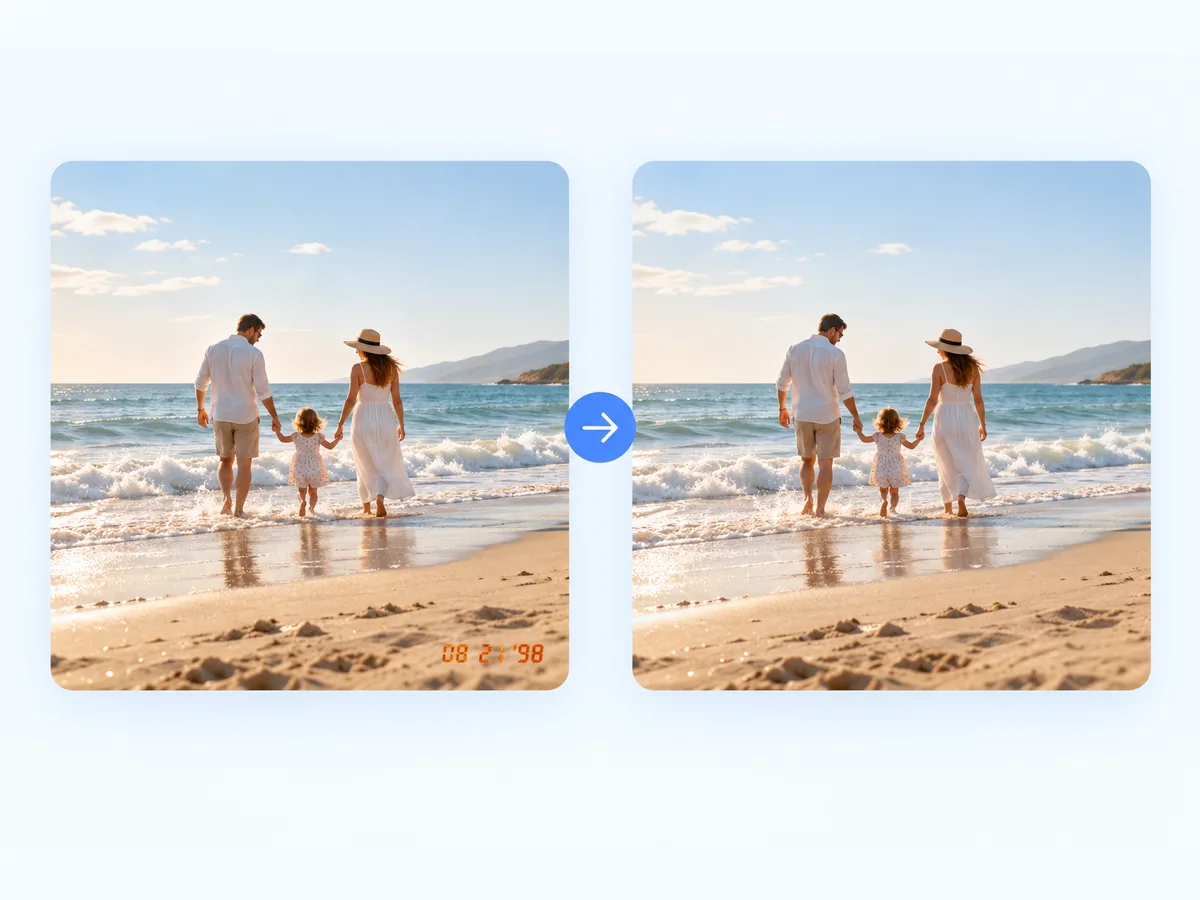
Remove a camera date from the corner of a family snapshot without trimming the photograph. A small stamp on open sand or sky is a more forgiving edit than one crossing a face or fine clothing detail.
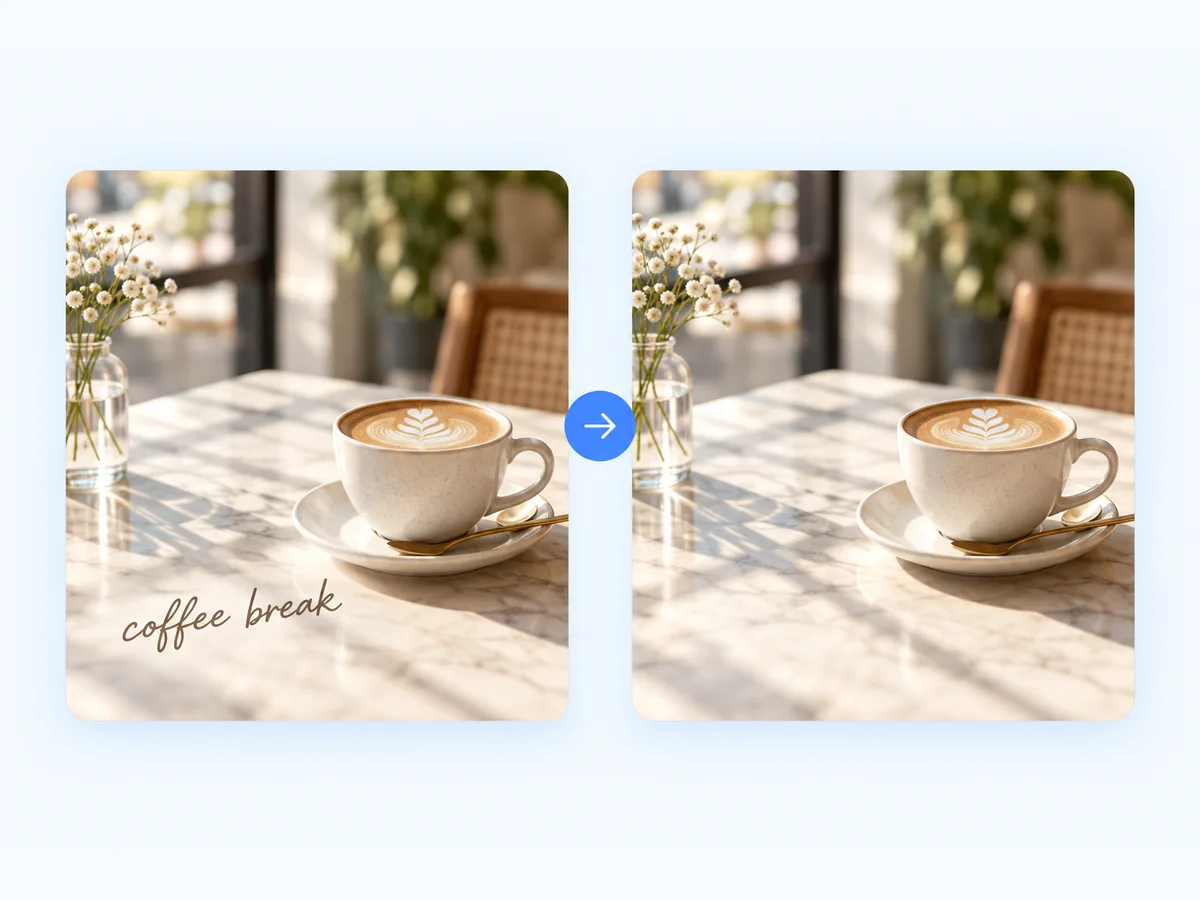
Reuse your own social image by brushing away a caption that has already been flattened into the picture. Leave the main subject unmarked, and check the fill carefully if the words overlap hair or textured scenery.
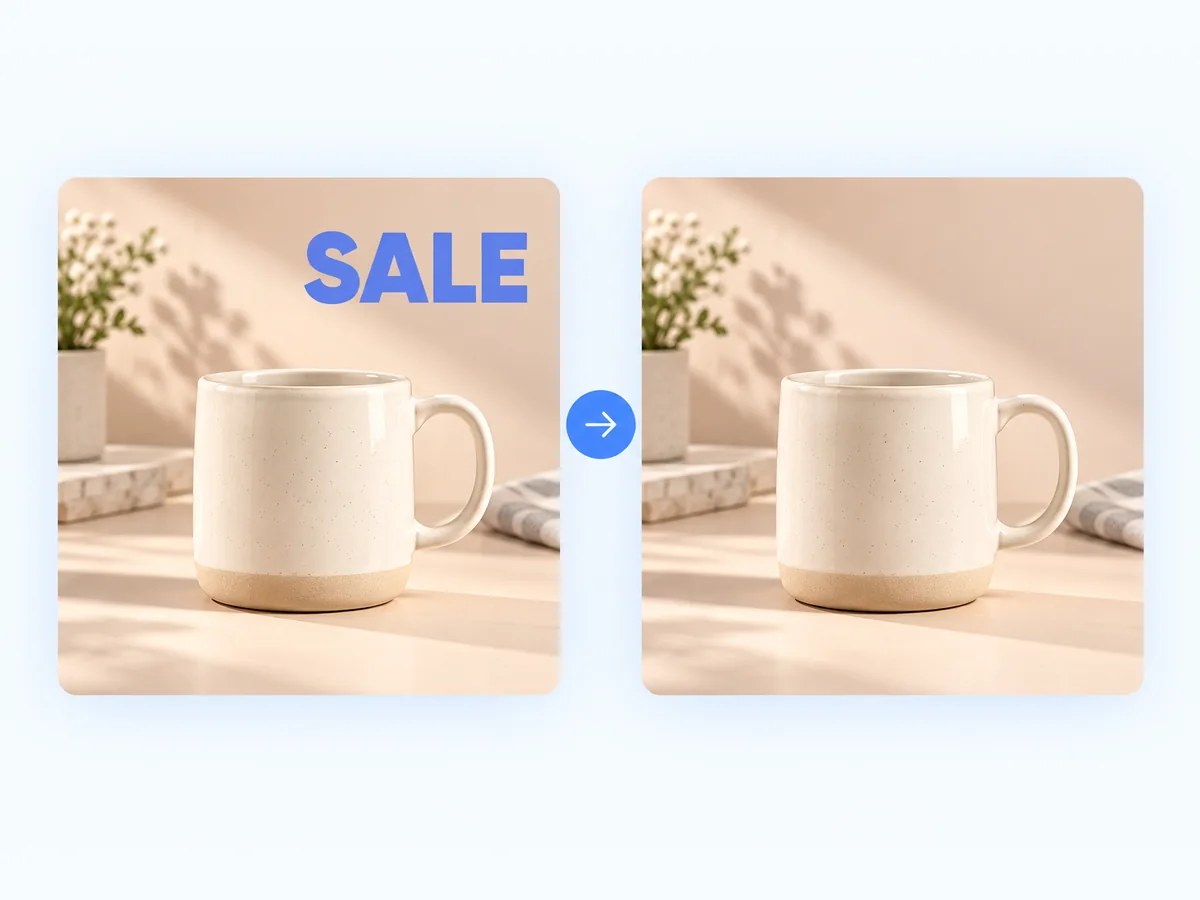
Clean up an outdated promotional label on an image you own before adding new campaign artwork. Preserve real product markings, ingredient information and details a buyer needs; cleanup should not misrepresent what is being sold.
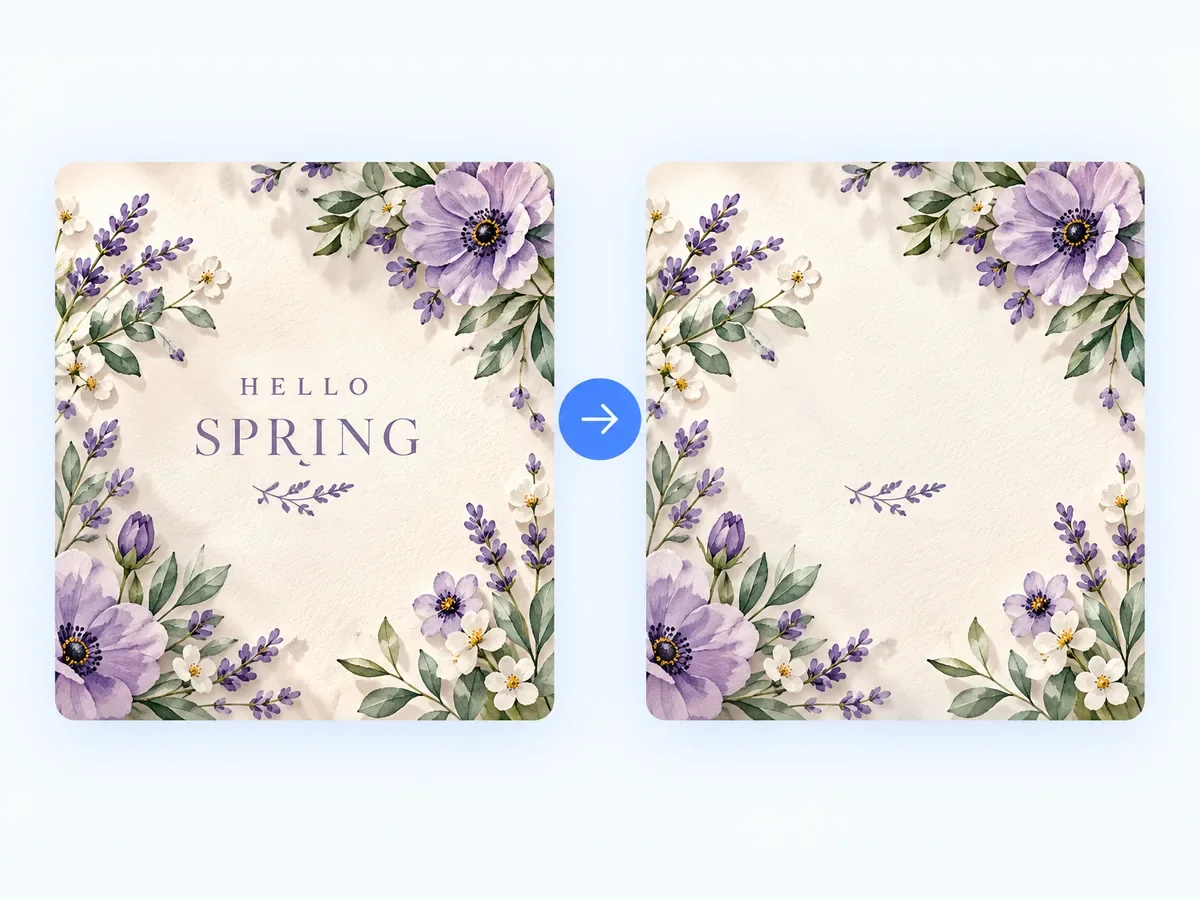
Clear a short heading from your own flattened graphic when the editable design file is unavailable. Simple backgrounds are easier to rebuild. Removing the text creates a blank area, not an editable text layer or the original hidden artwork.
Keep useful lettering while removing an outdated caption nearby. Manual marking is helpful when several pieces of text share one image: the tool does not need to guess which message you intend to erase.
Try a localized fill instead of cropping a whole edge from the frame. This can preserve the original layout for slides, posts or prints, though complex areas still need close review and may require another edit.
The free editor needs no account and exports a PNG you can place in another design. It removes the selected lettering from pixels; adding replacement words or changing a font is a separate step in your design app.
FAQ
No. To remove text from an image, paint over it with the manual brush. The editor does not offer automatic OCR selection or a find-and-replace function. Cover the full letter shapes, outlines and shadows you want removed.
Yes, you can mark just the date and try a local fill. Leave some clear surrounding texture outside the selection so the reconstruction has useful context. Inspect the corner afterward for repeating patterns or remaining digits.
No. When text is baked into an image, the covered pixels are not available to recover. AI reconstructs a plausible replacement from nearby context; it cannot establish exactly what was underneath the lettering.
Treat that as a difficult edit. Mark as little of the important detail as possible, then compare closely. Reconstructed facial features or intricate patterns may be inaccurate. An uncaptioned original is preferable when accuracy matters.
Yes. No account is required. Upload a decodable image up to 20 MB and download the edited image as a PNG. Keep the original separately so you can return to it if the cleanup does not suit your use.
Only edit images you own or have permission to modify. Removing a visible mark does not grant usage rights. Do not use cleanup to hide attribution, evade licensing requirements or alter evidence; request an authorized clean source instead.
YOUR NEXT EDIT
Text cleanup edits a small part of the image. If the next task involves clutter, people or the entire background, use the tool designed for that job.